-1.png?height=120&name=Halo%20Illustrations%20(1)-1.png)
Learn how to set-up, navigate and customise the HaloDashboard

Getting Started
- Overview of the Halo Dashboard
- The Top Command Line
- Customising the HaloDashboard
- Navigating the Side Menu
Incidents
- Reporting An Incident
- Sharing Incidents
- Incident Colour Codes
- Reviewing Incident Updates
- Resolving Incidents
- Closing an Incident and Debrief
- Sharing Incidents Outside of Halo
More
What's Next?
Getting Started 🚀
Overview of the Halo Dashboard
From your Log Dashboard you can view, share and manage active incidents and tasks in real-time. See exactly what is going on at your event or premises, at a glance:
1. Group calls to action/commands
2. Report an incident
3. Geofenced Map - See the locations of incidents and active users
4. People - See all online users and toggle to see everyone assigned to the event
5. Tasks - See upcoming or late tasks here. For more detail look in the side menu
6. Activity Log - Leave manual updates and key event milestones
7. Incidents - All live incidents that are active i.e. ’open’. Toggle across to see all closed incidents.
8. Side Menu - Click on the logo to see more detail

The Command Line
Customising the HaloDashboard
You can resize the HaloDashboard by toggling the box size on your Dashboard view, and using our Accessibility Feature
Navigating the Side Menu
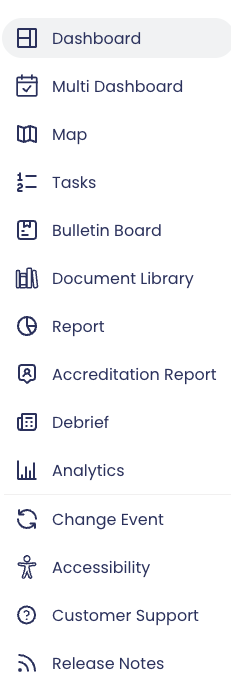
You can access other views and features from the Side Menu, including:
- Manage multiple logs from 1 Dashboard with Multi-Dashboard Mode
- View the Map in full-screen mode
- View and manage Tasks in full-screen mode (see below)
- Access and update the Bulletin Board
- Access the Document Library
- Access Log reports and additional modules reports
- Review the debrief with all incidents added from the Dashboard
- Access Analytics functions (see below)
- Change Event / Switch Logs
- View the Accessibility options
- Access our customer support form
- Review latest release notes.
Incidents
Reporting An Incident
Sharing Incidents
Incident Colour Codes
New incidents are shown as PURPLE.
Once opened, they will then turn WHITE (no colour)
If there is an update, incidents will turn YELLOW
Once resolved, incidents will turn GREEN
Reviewing Incident Updates
Resolving Incidents
Closing an Incident and Debrief
Sharing Incidents Outside of Halo
More
Managing Tasks in the Dashboard
As an App & Dashboard User, you can manage active tasks in the HaloDashboard. To update task list associated with specific Logs, speak to your site Admin User(s).
Viewing Analytics in the Dashboard
Both App & Dashboard Users, and Admin Users can retrieve incident, task and activity data in the HaloDashboard.
Using Multi-Dashboard Mode
What's Next?
Learn how to use our HaloApp